Rotate a video and save it right side up
To rotate a video and save it, the turn has to go into the file. The ways on Windows 11, Mac and FFmpeg, and which ones leave every frame untouched.
On this page
- Why does my video play sideways?
- Turn it in Vidray’s Editor
- Does rotating a video lose quality?
- Rotate a video on Windows 11 with Clipchamp
- Rotate a video on a Mac with QuickTime Player
- Rotate a video with FFmpeg, without re-encoding
- What if it still plays sideways somewhere?
- Pick your route
- Common questions
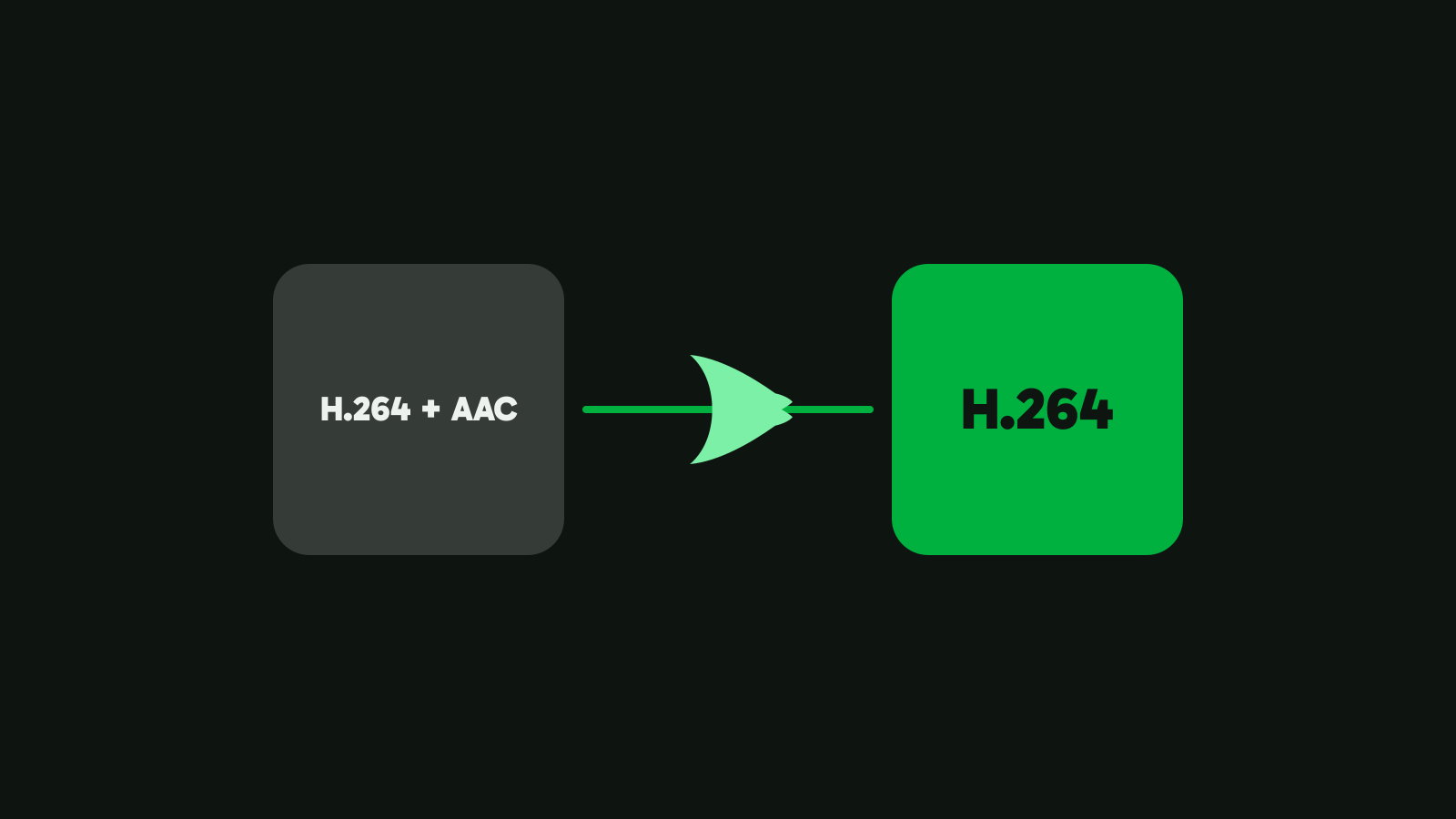
Most sideways videos need one quarter turn, and you can rotate a video that way without encoding a frame again. A video file carries a note telling players how to turn the picture, so an app only changes that note and copies the rest. Vidray’s Editor and FFmpeg work that way; Clipchamp and QuickTime Player export a new file.
Why does my video play sideways?
Because the note that says which way is up is wrong, or a player ignores it.
Phones usually record video in the shape of their camera sensor, wide, and add a note for playback: turn this a quarter to the right, for example. That’s how a video you filmed holding the phone upright plays upright on your computer. If the phone was lying flat when you started, or you turned it after pressing record, the note can say the wrong thing, and every player shows the video on its side.
The second case is a player or TV that doesn’t read the note at all. Then even a correct video plays sideways there and upright everywhere else.
Turning the video in a player rarely helps for long. VideoLAN’s own documentation lists VLC’s transform as a “Video output filter” (VideoLAN wiki, checked on 14 Nov 2026): it turns what you see while VLC plays, and the file stays as it was. To keep the turn, it has to go into the file.
Turn it in Vidray’s Editor
Vidray is a video app for Windows and Mac that works on your own computer. Its Editor cuts, joins, crops and turns videos, and its Rotate tool turns the picture a quarter at a time and mirrors it.
- Open Vidray. It opens on the Editor.
- Drop the video on the window, or choose Choose videos.
- Choose Rotate in the tools on the right.
- Choose Turn right or Turn left. The line above the buttons says what you have so far: Turned 90° right, Turned 180° or Turned 90° left.
- Choose Save. The new file goes next to the original, which stays as it was.
Before you save, the bar next to Save says what will happen. With Save as on Same as source, an MP4 stays an MP4. For a whole MP4 or MOV with nothing else changed, the bar says No re-encoding. Vidray copies the video and the sound into the new file and writes the turn into the same note a phone writes. The app says it in one line: “Turning and mirroring don’t re-encode the picture.”
Mirror flips the picture left to right, the same way: only the note changes. There is no separate vertical flip, because Turned 180° with Mirror on is the same picture.
The bar says Re-encodes when something else changes every frame: Crop, Speed or Watermark. Then the whole video is encoded once, on the graphics card when it can, and the picture comes out already upright. Cuts work together with the turn: drag the clip’s edges to trim the video in the same Save, and only the frames at each cut are re-encoded.
The turn applies to the whole video, and to every clip on the timeline: videos you drop together are joined into one file. To turn twenty separate videos, save them one by one.
Vidray Free has every tool, with no watermark and no trial clock, and makes 10 videos a month; each Save counts once. Pro has no monthly limit, for $24.99 once (compare Free and Pro). Your videos never leave your computer.
Does rotating a video lose quality?
Not when only the note changes. FFmpeg’s documentation describes a copy as “no decoding or encoding”, so “there is no quality loss” (FFmpeg, checked on 14 Nov 2026). We turned a sample file with FFmpeg’s flag and compared the video tracks: the turned copy’s video matched the original’s packet for packet.
An editor that renders a new file, as Clipchamp does, encodes every frame again, which costs a little detail and some time. That’s fine for a short clip, and it’s the only way to turn by an angle that isn’t a quarter.
Checked on 14 Nov 2026 on Microsoft’s, Apple’s and FFmpeg’s own help pages.
| Vidray | Clipchamp | QuickTime Player | FFmpeg | |
|---|---|---|---|---|
| Runs on | Windows and Mac | Comes with Windows 11 | Comes with macOS | Windows, Mac and Linux |
| Turns by | 90° steps | 90° steps or any angle | Left or right | 90° steps as a flag; any angle by re-encoding |
| Flips | Left to right | Both ways | Both ways | Both ways |
| What happens to the picture | Copied as it is | Exported again as MP4, 30 fps | A new MOV through Export As | Copied as it is with -c copy |
| Price | Free for 10 videos a month; Pro $24.99 once | Free up to 1080p | Free | Free and open source |
| How you use it | App | App | App | Command line |
Rotate a video on Windows 11 with Clipchamp
Clipchamp, Microsoft’s video editor, turns a clip on its timeline. Microsoft’s steps: click the clip on the timeline, click the three dots on the floating toolbar above the preview, then click the rotate by 90 degrees button until the clip faces the right way (Microsoft Support, checked on 14 Nov 2026). A freehand rotate tool under the preview turns it by any angle. Flip horizontal and flip vertical sit behind the flip button on the same toolbar (Microsoft Support).
To save, click Export at the top right and pick a resolution. The result is “an MPEG 4 (.mp4) file”, at 30 frames a second (Microsoft Support). The free plan exports “up to 1080p (full HD) video resolution for free, with no watermarks”; 4K needs a Microsoft 365 Personal or Family subscription (Clipchamp pricing, checked on 14 Nov 2026). A 4K phone video turned on the free plan comes out as a 1080p MP4 at 30 fps.
The Photos app is not the way here. Microsoft’s help page for it covers trimming a video, not turning one, and sends you to Clipchamp for more (Microsoft Support).
Rotate a video on a Mac with QuickTime Player
QuickTime Player turns and flips from its Edit menu. Apple’s steps: open the movie, choose View > Show Clips and select the clip, then from the Edit menu “choose to rotate the clip left or right, or flip it horizontally or vertically”, and click Done (Apple Support, checked on 14 Nov 2026).
To keep the result, choose File > Export As and a resolution. “Your movie is exported as a QuickTime movie (.mov) using the H.264 or HEVC codec”, and “QuickTime Player doesn’t export movies as MP4 videos” (Apple Support). The resolution and data rate “depend on the original”, in Apple’s words.
Rotate a video with FFmpeg, without re-encoding
FFmpeg writes the turn as a flag and copies the rest. This turns a video a quarter to the right:
ffmpeg -display_rotation -90 -i video.mp4 -c copy video-turned.mp4The number is in degrees counter-clockwise, as FFmpeg’s documentation defines it: -90 turns right, 90 turns left, 180 turns it upside down. It also “overrides the rotation/display transform metadata stored in the file”, so it replaces the turn a phone video already has instead of adding to it. Read that first; no output means the file has no turn:
ffprobe -v error -select_streams v:0 -show_entries stream_side_data=rotation -of default=nw=1 video.mp4To mirror the picture left to right the same way:
ffmpeg -display_hflip -i video.mp4 -c copy video-mirrored.mp4Older answers on forums use -metadata:s:v:0 rotate=90. In FFmpeg 7.0, which we tried it in, that wrote no turn at all: the new file played exactly like the old one.
To turn the pixels themselves, use the transpose filter. It encodes the video again and copies the sound:
ffmpeg -i video.mp4 -vf "transpose=clock" -c:a copy video-upright.mp4clock turns right and cclock turns left (FFmpeg filters). FFmpeg applies the file’s own turn first, so the filter turns the video from the way it plays now, not from the way it was stored.
What if it still plays sideways somewhere?
Then that player ignores the turn note, and the fix is a file with the pixels upright and no note to ignore. It’s the same note a phone writes for every video filmed upright, so any app that shows your phone videos the right way up shows a turned file the right way up too.
For the one TV or old player that doesn’t, encode the video once:
- In Vidray: turn it in the Editor, then drop the new file into Compress with “Fit a size” and a size below the file’s own. Compress encodes every frame and writes the picture upright, and the file comes out smaller too; compress a video to a specific size explains how the size is picked.
- With FFmpeg: encode it with no filter at all. FFmpeg turns the frames by the file’s note as it decodes them, and the new file has upright pixels and no turn:
ffmpeg -i video-turned.mp4 -c:a copy video-for-tv.mp4Pick your route
- “My phone video is sideways and I want it fixed for good.” Vidray’s Editor on Windows or Mac: Turn right, Save, and the picture is copied as it is.
- “I’m already editing the video in Clipchamp.” Turn it there and export. On the free plan, the result is 1080p at most, at 30 fps.
- “One clip on a Mac, nothing to install.” QuickTime Player’s Edit menu, then Export As.
- “The horizon is tilted a few degrees.” Clipchamp’s freehand rotate tool, or FFmpeg’s rotate filter. A small tilt can’t be a flag; it has to be encoded.
- “I’m at home on the command line.” FFmpeg’s
-display_rotationwith-c copy.
The same Save can also remove the sound or cut the ends off. Download Vidray for Windows or Mac and start with the sideways video in front of you.
Common questions
Does rotating a video reduce its quality?
No, not when the app writes the turn as a note and copies the picture. Vidray’s Rotate and FFmpeg’s -display_rotation with -c copy work that way, and the copied video matches the original. Editors that render a new file, such as Clipchamp, encode every frame again, which costs a little detail.
How do I rotate a video and save it on Windows 11?
Clipchamp, Microsoft’s video editor, turns a clip with the rotate by 90 degrees button and exports a new MP4 at 30 fps, up to 1080p on the free plan. Vidray’s Editor turns it with Turn right or Turn left and saves the picture as it is. The Photos app’s help page covers trimming, not turning.
How do I rotate a video permanently on a Mac?
In QuickTime Player, choose View, Show Clips, select the clip, then rotate or flip it from the Edit menu and export it with File, Export As. The result is a MOV in H.264 or HEVC. Vidray’s Editor on a Mac turns it without re-encoding and keeps the original format.
Why does my rotated video still play sideways on one device?
That player ignores the turn note that phones and apps such as Vidray write into the file. Most apps read it, which is why your phone videos play upright. For a player that doesn’t, encode the video once so the pixels themselves are upright, with Vidray’s Compress or a plain FFmpeg encode.
Can I flip a video horizontally without re-encoding?
Yes. A horizontal flip can be stored as a note, like a turn. Vidray’s Mirror button does it and copies the picture, and FFmpeg does it with -display_hflip and -c copy. A vertical flip is the same picture as a half turn with a horizontal flip.