How to trim a video without losing quality
Trimming loses no quality when the part you keep is copied, not encoded again. Why cuts snap to keyframes, and how to cut on the exact frame on Windows and Mac.
On this page
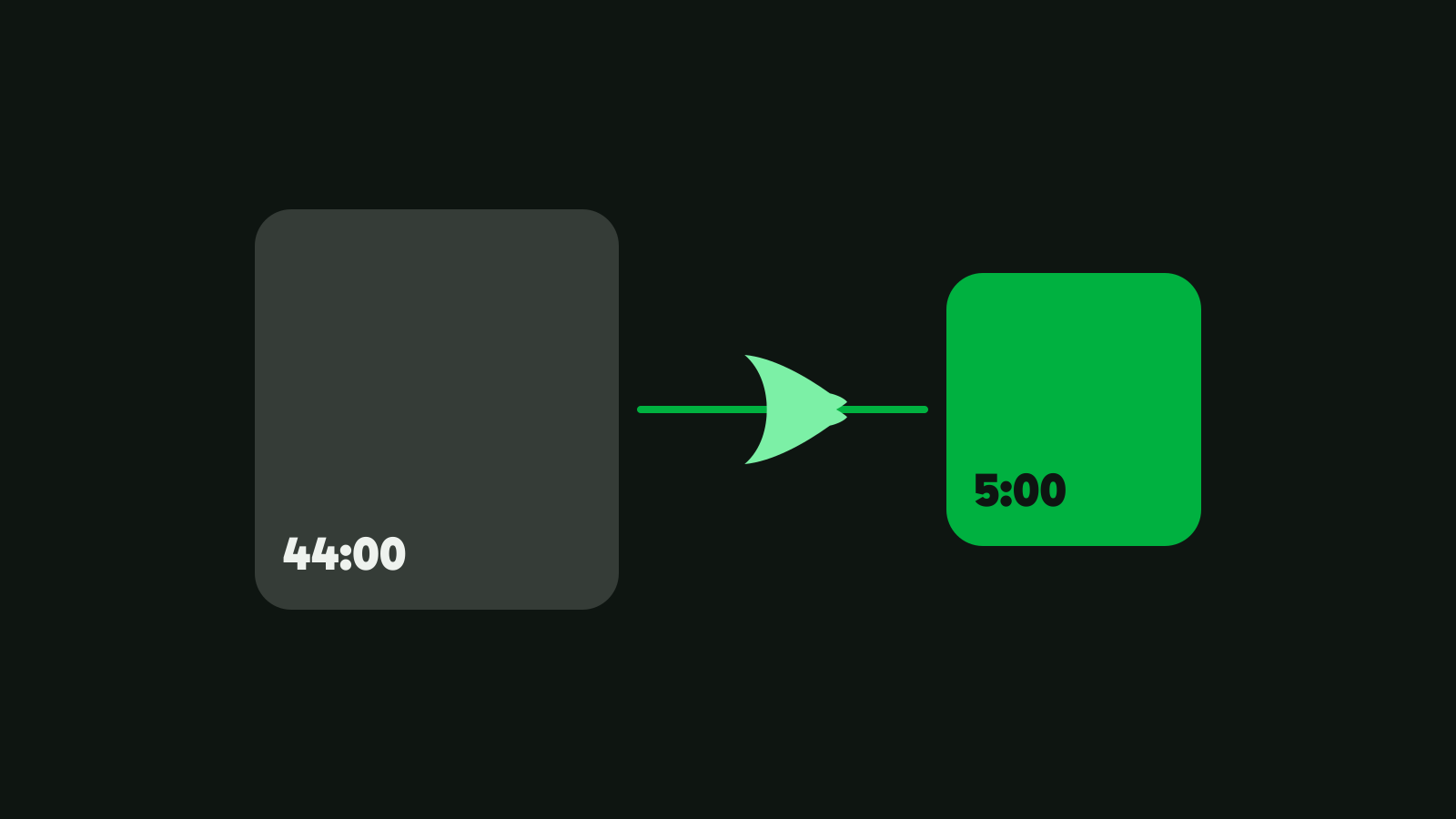
To trim a video without losing quality, copy the part you keep instead of encoding the whole video again. A copy keeps every frame exactly as it was. On our test PC, Vidray cut a 5-minute part out of a 44-minute, 6 GB recording, on the exact frame, in 2.6 seconds.
Why trimming usually costs quality
Most video apps trim by decoding the video and encoding it again. Every frame goes through the encoder a second time, and each pass throws a little detail away to keep the file small. It also takes time: the longer the video, the longer the wait.
The built-in tools work this way. Clipchamp on Windows exports “an MP4 file in one of the resolutions you choose”, and its free plan goes up to 1080p (Clipchamp, checked on 9 Nov 2026). QuickTime Player’s Export As makes a new H.264 or HEVC movie at the resolution you pick (Apple, checked on 9 Nov 2026).
You can see the cost on a real file. We re-encoded a 5-minute part of a NASA recording with FFmpeg on the graphics card: it took 28 seconds and scored 96.5 on VMAF, a picture-quality score from 0 to 100. Vidray’s smart cut of the same part scored 97.8, exactly what the original scores against itself: the frames between the cuts are the original’s, frame for frame.
Why does a lossless trim start a second early?
Because a copy can only start on a keyframe. A compressed video stores a full picture only now and then; the frames in between store just what changed. A copy that started between two keyframes would begin with frames that have nothing to change from.
How far apart keyframes are depends on the camera or app that recorded the video. In the NASA recording we cut, there is one every half second, 30 frames apart. FFmpeg’s documentation puts the consequence plainly: “in most formats it is not possible to seek exactly, so ffmpeg will seek to the closest seek point before position”, and with a stream copy, those earlier frames are kept (FFmpeg, checked on 9 Nov 2026).
In our test, FFmpeg’s copy of the 5-minute part held 17,985 frames: the 17,967 we asked for and 18 more from the keyframe before the start. An edit list in the MP4 tells players to skip most of them, so FFmpeg itself plays 17,968, one too many; an app that ignores edit lists shows all 18, about a third of a second before your start. LosslessCut, a free app built on the same kind of copy, says it on its home page: “Lossless cuts can only start at a keyframe” (LosslessCut, checked on 9 Nov 2026).
The way around it is to encode only the frames between the cut and the next keyframe, and copy the rest. That is called a smart cut, and it’s what Vidray does.
Trim a video with Vidray
Vidray’s Editor cuts on the exact frame you choose and re-encodes only the frames at each cut.
- Open Vidray. It opens on the Editor.
- Drop the video on the window, or choose Choose videos.
- Drag the clip’s left and right edges on the timeline. Or choose Cut on the right and set Start and End. The arrow keys step one frame, and I and O set the start and end at the playhead.
- To take a part out of the middle, put the playhead there, press S to split the clip, and delete the part you don’t want.
- Choose Save. The new file goes next to the original, which stays as it was.
Before you save, the bar next to Save says what will happen and about how long it takes. Re-encodes only the cuts is the smart cut. No re-encoding means the start and the end need no new frames, for example when you only cut the start of an MP4: the file is copied, and its start is set to the exact frame. Re-encodes means the whole edit is encoded once, on the graphics card when it can.
On our test PC, with the 44-minute recording:
| Trim | Kept | Output | Time | Frames |
|---|---|---|---|---|
| A 5-minute part from the middle | 5:00 | 689 MB | 2.6 s | 17,967, exactly as asked |
| The first 2 and last 4 minutes off | 40:00 | 5.5 GB | 43 s | 143,841, exactly as asked |
Measured on our test PC, the median of three runs. Times vary with your hardware.
The 40-minute file is mostly copying 5.5 GB onto a hard drive, which is why it takes longer and why its three runs ranged from 35 to 57 seconds. The sound is copied too, clip by clip, and stays with the picture: in our test with eight cuts it was never more than 11 milliseconds off.
Some trims are encoded whole, and the bar says Re-encodes before you save:
- Crop, Speed or Watermark is on: they change every frame.
- An iPhone video in HEVC, saved as MOV or MP4, with a cut that isn’t on a keyframe. Saved as MKV under Save as, it keeps the smart cut. What HEVC is explains the format.
- Camcorder video recorded in fields (interlaced), and codecs other than H.264 and HEVC, such as ProRes.
Vidray Free makes 10 videos a month; each Save counts once. Pro has no monthly limit, for $24.99 once (compare Free and Pro).
Trim a video on Windows 11 with Clipchamp
Clipchamp comes with Windows 11 and trims on a timeline. Microsoft’s steps: click the video on the timeline, “then click and drag the green bars back and forth” (Clipchamp, checked on 9 Nov 2026). Then choose Export at the top right and pick a resolution.
The free plan exports “in up to 1080p (full HD) video resolution for free, with no watermarks” (Clipchamp pricing, checked on 9 Nov 2026). 4K needs a Microsoft 365 Personal or Family subscription or a Clipchamp premium plan. The export encodes the whole video, so a 4K clip comes out smaller and softer on the free plan.
For a short clip you’re about to share, that’s fine, and it costs nothing.
Trim a video on a Mac with QuickTime Player
QuickTime Player trims too. Apple’s steps: “open the movie you want to trim, then choose Edit > Trim”, drag the yellow handles, and click Trim (Apple, checked on 9 Nov 2026).
To get a file you can share, choose File > Export As and a resolution: 4K, 1080p, 720p or 480p. The result is a MOV in H.264 or HEVC, and “QuickTime Player doesn’t export movies as MP4 videos” (Apple). Apple’s guide doesn’t say how exactly the exported file is encoded; it says the resolution and data rate “depend on the original”.
Trim with FFmpeg
FFmpeg is free and does both kinds of trim from the command line. A copy, which starts at the keyframe before your start time:
ffmpeg -ss 00:12:00.5 -to 00:17:00.25 -i recording.mp4 -map 0 -c copy part.mp4On our test PC this took 1.3 seconds for the 5-minute part. It’s the fastest way when a second either side doesn’t matter.
To start on the exact frame, encode the part. On a PC with an NVIDIA card:
ffmpeg -ss 00:12:00.5 -to 00:17:00.25 -i recording.mp4 -c:v h264_nvenc -preset p5 -tune hq -rc vbr -cq 19 -b:v 0 -c:a copy part.mp4That took 28 seconds and re-encoded every frame. Without an NVIDIA card, -c:v libx264 -crf 18 does the same on the CPU, more slowly.
Which method fits you
- “I need a quick clip to share.” Clipchamp or QuickTime Player. They’re already installed, and the encoding loss won’t show on a phone screen.
- “I’m cutting a long recording and want the picture untouched.” Vidray’s Editor: only the frames at the cuts are encoded, and the file starts and ends where you said.
- “A second early at the start doesn’t matter.” FFmpeg’s copy, or LosslessCut. Both are free. Our LosslessCut alternative guide compares the apps that cut this way.
- “I’m trimming several clips and joining them.” That’s one Save in Vidray: see how to merge videos without losing quality.
- “The file is still too big after trimming.” A trim keeps the bitrate. Compressing it makes it smaller.
Start with one recording you need to cut: drop it into the Editor, drag the edges and read what the bar says before you save. Download Vidray for Windows or Mac.
Common questions
Does trimming a video reduce its quality?
Only if the trimmed video is encoded again. Most editors and built-in apps encode every frame on export, which loses a little detail. A trim that copies the video keeps every frame as it was; a smart cut, like Vidray’s, re-encodes only the few frames between each cut and the nearest keyframe.
Can you trim a video without re-encoding?
Yes, if the cut starts on a keyframe. A copy can’t start between keyframes, so a plain copy, as FFmpeg’s -c copy makes, begins at the keyframe before your start. To start on the exact frame, the frames up to the next keyframe have to be encoded; the rest can still be copied.
Why is my trimmed video still so big?
Because trimming keeps the bitrate. A copied part has the same number of bits per second as the original, so 5 minutes of a 6 GB, 44-minute recording is still about 690 MB. To make it smaller, compress it after trimming, for example with Vidray’s Fit a size or Same look.
How do I trim a video on Windows 11 for free?
Use Clipchamp, which comes with Windows 11: drag the green bars on the timeline, then export. The free plan exports MP4 up to 1080p with no watermark, but it encodes the whole video again. Vidray Free trims on the exact frame without that, for 10 videos a month.
Does Vidray trim iPhone videos without re-encoding them?
Not when they are saved as MOV or MP4 with a cut off a keyframe. iPhone videos are usually HEVC, and Vidray encodes those whole, on the graphics card when it can. A cut on a keyframe, or the same trim saved as MKV, is copied with only the cut frames encoded.