How to compress a video without losing quality
Make a video smaller while it looks the same. What makes video files big, which setting to change, and measured results from Vidray, HandBrake and FFmpeg.
On this page
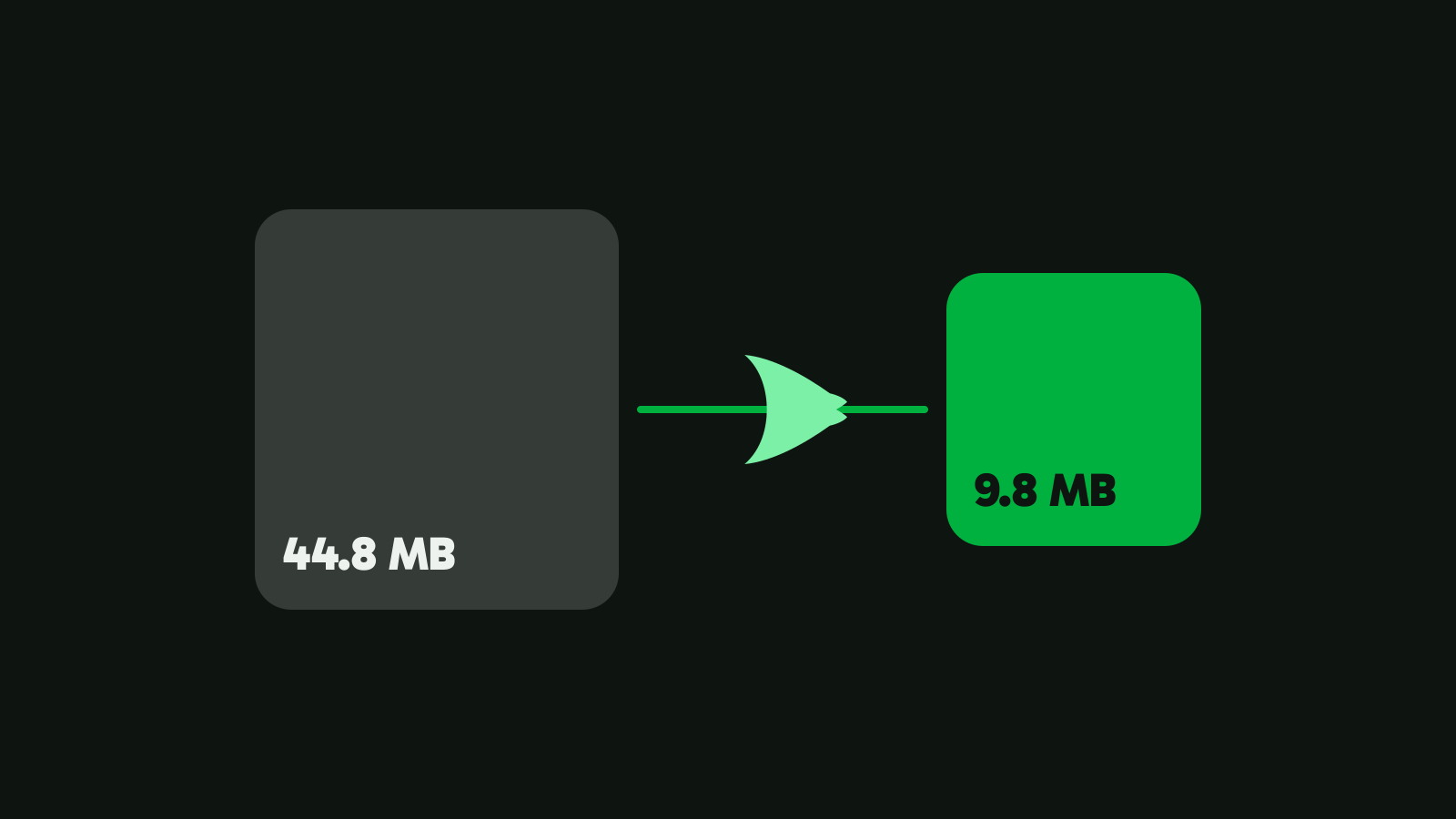
To compress a video without losing quality you can see, re-encode it with a modern codec at a quality setting high enough that nobody can tell the difference. Our 4K test clip went from 44.8 MB to 25.8 MB that way and scored 97.6 out of 100 on VMAF, a standard picture-quality test.
What makes a video file big
A video file is a stream of bits, and the number of bits each second gets is called the bitrate. Size is bitrate times length. Our 4K test clip, straight from the camera, runs at 16.9 Mbit/s for 21 seconds, which comes to 44.8 MB.
Phones and cameras record at a high bitrate on purpose. They encode in real time with no second look at the picture, so they spend bits generously to be safe. A compressor can take its time: it sees which parts of the frame are still or simple and spends bits only where the detail is. That’s why most phone videos can lose a large part of their size without a visible change. How much depends on the video: a grainy night scene needs more bits than a sunny lawn.
Three things decide how many bits a video needs:
- Resolution. A 4K frame has four times the pixels of a 1080p frame.
- Motion and detail. Leaves in the wind, water, confetti and film grain cost the most.
- The codec. HEVC (H.265) keeps the same picture in fewer bits than H.264. The price is slower encoding and less support on older devices.
Can you compress a video without any quality loss?
Not if you re-encode it. Every everyday video codec throws information away to make the file small. What you can do is throw away only what nobody can see, and that can be measured instead of guessed.
The usual measure is VMAF, a score from 0 to 100, published by Netflix as open source, that predicts how people rate a video against its original. Higher means closer to the original. Every quality number on this site is a VMAF score measured against the original file, so you can compare them with each other.
There is one way to change a video with no loss at all: changing the format without re-encoding. Turning a MOV or an MKV into an MP4 often only moves the same streams into a new container, so the picture stays bit for bit the same (see MOV to MP4 and MKV to MP4). It just doesn’t make the file any smaller.
Compress a video with Vidray
Vidray is a video compressor and converter for Windows and Mac that works on your own computer. You pick a goal, not a bitrate:
- Open Vidray and choose Compress.
- Pick “Same look” to keep the picture, or “Fit a size” when the other end has a limit, such as 25 MB for a Gmail attachment.
- Drop the video in. It starts right away. Vidray never overwrites a video. The new file goes beside it, or into a folder you choose in Settings.
“Same look” uses a quality setting chosen so the picture looks unchanged and saves an MP4, in HEVC when your computer can encode it. If the result wouldn’t be smaller than 95% of the original, Vidray deletes it and keeps the original, so you never end up with a “compressed” copy that saves nothing.
Here is what each goal did to our 4K test clip (forest-walk.mp4 from Pexels, 44.8 MB, 21 seconds):
| Goal | Result | Time | VMAF |
|---|---|---|---|
| Same look | 25.8 MB, 43% smaller, still 4K | 7.9 s | 97.6 |
| Fit a size, 20 MB | 19.6 MB, 1080p | 3.2 s | 94.1 |
| Fit a size, 10 MB | 9.8 MB, 1080p | 3.2 s | 91.3 |
Measured on our test PC. Times vary with your hardware. One clip is not a benchmark: a darker or noisier video shrinks less. Method and raw results: Vidray 1.0.0 on our test PC (NVIDIA RTX 3060 Ti), median of four runs, VMAF with both files scaled to 1080×1920.

Vidray tests your computer’s video encoders once and uses the fastest one that works. If the graphics card is busy or a job fails on it, Vidray carries on with the CPU and tells you it switched. Everything happens on your computer, and it works without an internet connection.
Which setting to change: bitrate, resolution or codec
If you compress by hand, the order you change things in matters more than any single number.
| Change | Smaller file | What you see |
|---|---|---|
| Switch to HEVC | Yes, at the same quality | The same picture; some older devices and editors can’t open it |
| Lower the bitrate or raise the quality number (CRF, RF) | Yes | Fine up to a point, then blocky in fast motion |
| Lower the resolution | Yes | Less fine detail, often unnoticeable on a phone screen |
Start with the codec, then the quality setting, and lower the resolution only when the file has to meet a tight limit. At the same size, a sharp 1080p video looks better than a blocky 4K one. That is the choice “Fit a size” makes for you: the less room each second gets, the smaller the frame it picks. How to compress a video to a specific size has the table.
Free ways to compress without visible loss
HandBrake (Windows, Mac, Linux)
HandBrake is free and open source. Its presets use a constant quality setting called RF: a lower RF means higher quality and a bigger file. Its documentation recommends RF 20-24 for 1080p and RF 22-28 for 4K with the x264 and x265 encoders (checked on 5 Nov 2026).
- Open the video in HandBrake.
- Pick a preset: “Fast 1080p30” to make it 1080p, or an H.265 4K preset to keep 4K.
- Click Start Encode.
On our clip, HandBrake’s “H.265 NVENC 2160p 4K” preset made an 11.9 MB file with a VMAF of 95.9 in 9.0 seconds: less than half the size of Same look’s file, with a slightly lower score. Its default “Fast 1080p30” preset made 12.2 MB at VMAF 91.1 in 15.4 seconds. HandBrake gives you more control than Vidray; the price is choosing presets and numbers yourself.
FFmpeg (any computer, command line)
ffmpeg -i input.mp4 -c:v libx265 -crf 24 -preset medium -tag:v hvc1 -c:a copy output.mp4-crf is the quality: lower is better and bigger. FFmpeg’s x265 encoder uses 28 when you leave it out, and x264 uses 23 (checked in FFmpeg 8.1.1). Start at 24, compare the result with the original, and go up until you can see a difference. -tag:v hvc1 lets Apple devices play the HEVC file, and -c:a copy keeps the sound as it is.
On a Mac: QuickTime Player
Choose File > Export As, then 1080p or 720p. For 4K and 1080p, Apple offers “Smaller File Size”, which exports in HEVC. QuickTime saves a MOV file, not an MP4, and lets you pick only the resolution, not the quality (Apple’s guide, checked on 5 Nov 2026).
Which method fits you
- “I want the same video, just smaller.” Vidray with Same look: one drop, no settings.
- “It has to fit under a limit.” Vidray with Fit a size. To mail it, see how to send a video that’s too large to email.
- “I want the smallest possible file and don’t mind tuning.” HandBrake with an H.265 preset, or FFmpeg with x265 and a CRF you test.
- “I’m on a Mac and need it smaller once.” QuickTime’s Export As 1080p with Smaller File Size.
- “I have a whole folder of videos.” Drop the folder: Vidray takes every video in it, one after another. Free makes 10 videos a month; Pro makes as many as you like, with no monthly limit. $24.99, once.
Why does my compressed video look blurry?
- The bitrate was too low for the motion. Fast movement, water and grain need more bits. Give it a bigger size or a better quality setting.
- The resolution stayed too high for the bitrate. Squeezing 4K into a small file spreads too few bits over too many pixels. A lower resolution at the same size looks sharper.
- It was compressed more than once. Each re-encode loses a little more. Always start from the original, which Vidray keeps untouched.
- It looked fine until you sent it. The app or site you sent it through may have compressed it again on its side.
Try it on one video you care about: run Same look, open both files side by side and judge with your own eyes. Free does all of this, 10 videos a month, with no watermark and no trial clock. Download Vidray for Windows or Mac.
Common questions
Does compressing a video always lose quality?
Re-encoding always changes the data, but it doesn’t have to change what you see. On our 4K test clip, Vidray’s Same look made the file 43% smaller and scored 97.6 out of 100 on VMAF, a picture-quality test that compares the result with the original.
Is it better to lower the resolution or the bitrate?
Lower the bitrate first, and the resolution only when the size limit is tight. At the same file size, a sharp 1080p video looks better than a blocky 4K one. Vidray’s Fit a size makes that choice for you, based on how much room each second of video gets.
Is HEVC better than H.264 for compressing video?
Yes for size: HEVC keeps the same picture in fewer bits than H.264. The catch is support, since some older computers, TVs and editing apps can’t play it. Vidray’s Same look uses HEVC when your computer can encode it, and Fit a size makes H.264 MP4 files.
Is the original file kept?
Yes. Vidray never overwrites a video: the smaller copy is saved next to the original, with “(Vidray)” added to its name, or in a folder you choose in Settings. If Same look can’t make the file meaningfully smaller, it keeps the original and deletes the copy.
Can I compress a video without uploading it?
Yes. Vidray, HandBrake, FFmpeg and QuickTime Player all work on your own computer, so the video never leaves it. Online compressors upload the file to their server first, which takes a while for big videos and means someone else’s computer handles your footage.