MOV to MP4: convert without losing quality
Converting MOV to MP4 is usually a copy: the video goes into the new file untouched, in seconds. How to do it on Windows and Mac, and when it must re-encode.
On this page
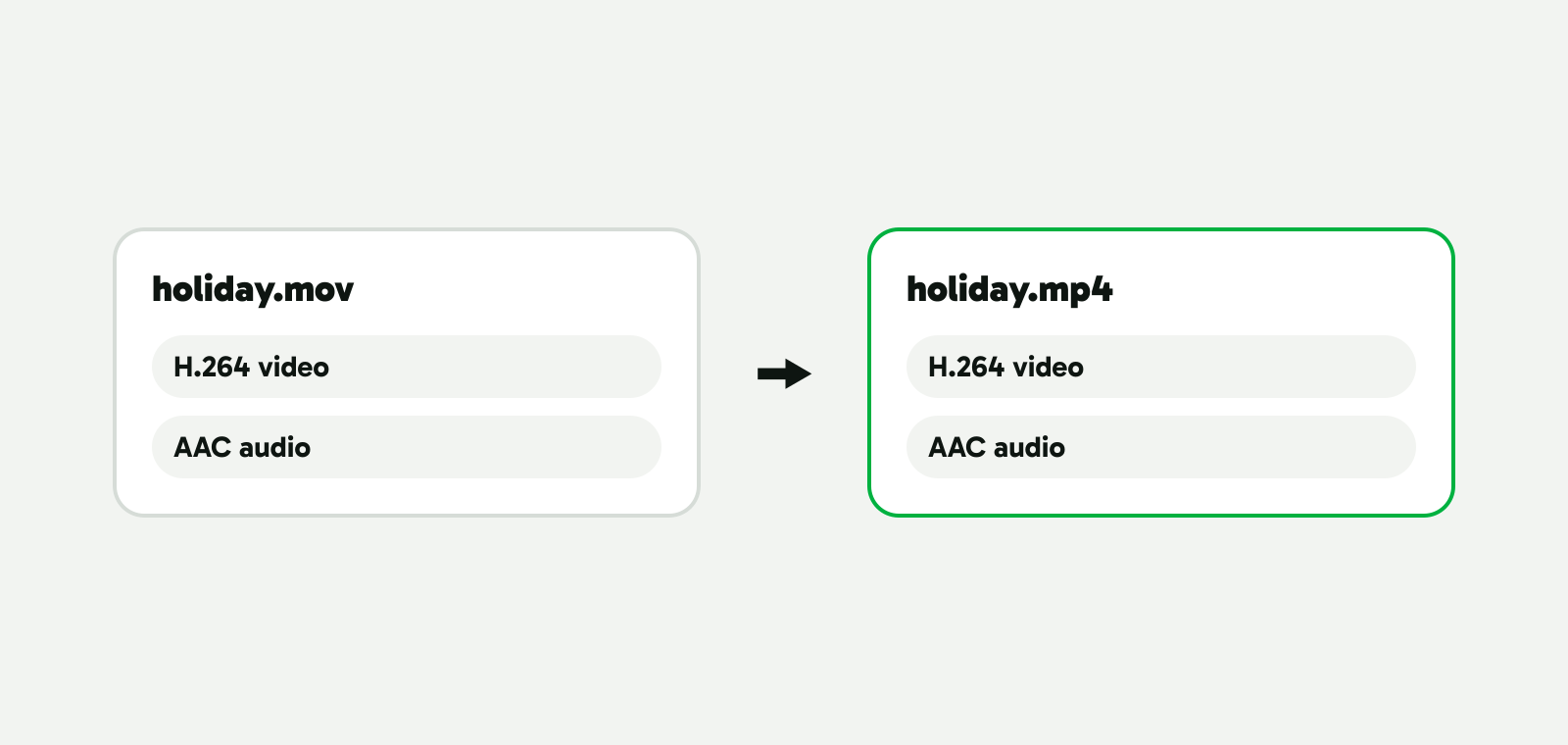
Converting MOV to MP4 usually loses no quality, because it’s a copy: the H.264 or HEVC video inside the MOV goes into the MP4 as it is. On our test PC, Vidray copied a 45 MB 4K MOV in about a second, and the video came out bit for bit the same. Only ProRes has to be encoded again.
What changes when a MOV becomes an MP4
A video file is a box with streams inside: one for the picture, one for the sound. MOV and MP4 are two kinds of box. MOV is Apple’s QuickTime format, and MP4 is the international standard built on the same design, so most of what fits in one fits in the other. The codec is how each stream is compressed: H.264 or HEVC for the picture, AAC for the sound.
When MP4 takes the streams inside a MOV, they’re copied as they are: it takes seconds, and the picture stays exactly the same. MP4 vs MOV explains where the two formats really differ.
What’s inside your MOV decides what happens to it:
| Inside the MOV | Usually from | In the MP4 |
|---|---|---|
| H.264 video | iPhones set to “Most Compatible”, most cameras, screen recordings | Copied as it is |
| HEVC (H.265) video | iPhones set to “High Efficiency” | Copied as it is, still HEVC |
| ProRes video | Pro iPhones, cinema cameras, editing apps | Encoded again: MP4 players don’t expect ProRes |
| AAC sound | Phones and most cameras | Copied as it is |
| PCM sound (uncompressed) | Cameras and editing apps | Converted to AAC |
Copying keeps the codec. If an iPhone video in HEVC won’t play on a Windows PC, putting it in an MP4 won’t fix that: the PC needs to play HEVC, or the video needs to become H.264. What HEVC is covers both ways.
Convert MOV to MP4 with Vidray
Vidray is a video compressor and converter for Windows and Mac that works on your own computer. Its Convert tool copies whatever MP4 can take and encodes only what it can’t.
- Open Vidray and choose Convert.
- Pick MP4.
- Drop the MOV file in. You can also right-click it: Vidray, then Convert in File Explorer on Windows, or the Quick Action on a Mac.
H.264 and HEVC video and AAC sound are copied, and the row says “No re-encoding”. HEVC gets the hvc1 tag Apple’s players look for. PCM sound becomes AAC at 192 kbit/s while the video is still copied. ProRes is encoded as H.264, on your graphics card when it can.
We tried each case with Vidray 1.0.0 on our 4K test clip (21.2 seconds, from Pexels), packed into a MOV with sound:
| The MOV | MOV size | What Vidray did | MP4 size | Time |
|---|---|---|---|---|
| H.264 video, AAC sound | 45.3 MB | Copied both | 45.3 MB | 1.0-1.2 s |
| HEVC video, AAC sound | 50.0 MB | Copied both, tagged hvc1 | 50.0 MB | 0.9 s |
| H.264 video, PCM sound | 48.9 MB | Copied the video, sound to AAC | 45.3 MB | 1.3-1.4 s |
| ProRes 422 video, PCM sound | 1,378 MB | Encoded H.264 on the graphics card | 51.9 MB | 8.4-8.5 s |
The copied video streams have the same MD5 checksum as the originals: not one bit changed. The ProRes file came out 96% smaller and scored 98.3 on VMAF, a picture-quality score from 0 to 100, against the ProRes. Measured on our test PC. Times vary with your hardware.
Vidray never overwrites a video. The new file goes beside it, or into a folder you choose in Settings. Free does all of this, 10 videos a month, with no watermark. Pro makes as many as you like, with no monthly limit. $24.99, once.
Does converting MOV to MP4 lose quality?
Not when the video is copied. H.264 and HEVC go into the MP4 unchanged, and in our tests the MP4s came out about 200 bytes smaller than the MOVs. Quality drops only when the picture is encoded again, a little each time, and some routes always do that:
- Video editors such as Clipchamp and iMovie make a new video when they export: you pick a resolution and a quality, even if you changed nothing.
- HandBrake encodes every file, by design.
- Online converters may do either. If the MP4 took far longer than copying the file, or its size differs from the MOV by more than the sound explains, the picture was encoded again.
ProRes is the case where encoding is the point. It’s a format for editing, and Apple says ProRes files are “up to 30 times larger than HEVC files” (ProRes on iPhone). MP4 players don’t expect it. An H.264 MP4 made from it costs a little picture quality and saves almost all the space: our 1.38 GB ProRes file scored 98.3 as a 51.9 MB MP4. Keep the ProRes if you’ll edit it again.
Convert MOV to MP4 with FFmpeg
FFmpeg is free and runs on Windows, Mac and Linux from the command line (Terminal on a Mac). This copies the video and sound of a MOV into an MP4 without re-encoding:
ffmpeg -i input.mov -c copy -movflags +faststart output.mp4-c copy copies every stream as it is. -movflags +faststart moves the index to the beginning of the file, in FFmpeg’s words, so a web page can start playing the video before all of it has arrived.
HEVC needs the hvc1 tag for Apple’s players. FFmpeg kept it from our iPhone-style HEVC MOV on its own, but HEVC from elsewhere can come out tagged hev1 (ours did, from an MKV). Adding -tag:v hvc1 makes sure, and does no harm:
ffmpeg -i input.mov -c copy -tag:v hvc1 -movflags +faststart output.mp4FFmpeg also copies uncompressed PCM sound into an MP4 as it is, and Chrome played our test file with its sound. For a smaller file, make the sound AAC, the audio format YouTube recommends for uploads: on our clip, 1,536 kbit/s of PCM became 192 kbit/s, 3.6 MB less.
ffmpeg -i input.mov -c:v copy -c:a aac -b:a 192k -movflags +faststart output.mp4ProRes can’t be copied: FFmpeg stops with “Could not find tag for codec prores in stream #0, codec not currently supported in container”. It has to be encoded, which is what Vidray’s Convert does on its own. All the commands ran as written in FFmpeg 8.1.1 on 8 Nov 2026, on the MOV files in the table above.
Can you just rename a .mov file to .mp4?
You can, but nothing is converted: the file is still a MOV inside. FFmpeg’s ffprobe reads our renamed file’s brand as “qt”, QuickTime’s, where the real MP4s from Vidray and FFmpeg say “isom”. A player that looks inside may open it anyway, because the two formats are so close; an app or website that checks the file type may not. ProRes doesn’t become playable under a new name either. A real copy took about a second on our 45 MB clip, so it’s worth the extra step.
Can QuickTime convert MOV to MP4?
No. Apple’s own guide says so: “QuickTime Player doesn’t export movies as MP4 videos” (QuickTime Player User Guide, checked on 8 Nov 2026). File, Export As saves a QuickTime movie (.mov) with H.264 or HEVC video, at 4K, 1080p, 720p or 480p. That helps in one case: choosing “Greater Compatibility” at 4K or 1080p makes an H.264 copy of an HEVC video, which plays on a PC without the HEVC extension. The file is still a MOV, and the picture is encoded again.
On a Mac, the free routes to a real MP4 are FFmpeg in Terminal, VLC and HandBrake, below.
VLC, HandBrake, Clipchamp and online converters
VLC is a free player for Windows and Mac that also converts: Media, Convert/Save, add the file, Convert/Save, pick a profile and a destination file, then Start (VLC documentation, checked on 8 Nov 2026). Its “Video - H.264 + MP3 (MP4)” profile encodes the video again and turns the sound into MP3. To copy instead, click “Edit selected profile” next to it and tick “Keep original video track” on the Video codec tab and “Keep original audio track” on the Audio codec tab (VLC 3.0.21).
HandBrake is free and open source, with a queue for many files. It always re-encodes: its documentation lists “Pass-through video without conversion (video is always converted)” among what it does not do (HandBrake docs, checked on 8 Nov 2026). That’s fine when you want a smaller file anyway, and slow when a copy would have done.
Clipchamp is Microsoft’s video editor for Windows, with a free plan. Import the MOV, drag it onto the timeline, click Export and pick a resolution. Microsoft says you’ll “receive an MPEG-4 (.mp4) video file with a frame rate of 30fps”, with 480p, 720p and 1080p free; 4K needs a Microsoft 365 Personal or Family subscription or Clipchamp Premium (Microsoft Support, checked on 8 Nov 2026). So a 60 fps iPhone clip comes out at 30 fps, encoded again.
Online converters need nothing installed, but the MOV has to be uploaded first. FreeConvert’s MOV to MP4 page takes files up to 1 GB for free and deletes them after 8 hours (FreeConvert). Free use is capped at 5 conversion minutes per file and 20 conversion minutes a day; paid plans start at $12.99 a month, for files up to 1.5 GB (FreeConvert pricing). Both checked on 8 Nov 2026.
| Copies without re-encoding | File stays on your computer | Price | |
|---|---|---|---|
| Vidray | Yes, Convert does it on its own | Yes | Free, 10 videos a month; Pro $24.99 once |
| FFmpeg | Yes, with -c copy |
Yes | Free |
| VLC | Only with “Keep original video track” | Yes | Free |
| HandBrake | No, “video is always converted” | Yes | Free, with a queue |
| Clipchamp | No, exports at 30 fps | Yes | Free up to 1080p; 4K with Microsoft 365 or Clipchamp Premium |
| QuickTime Player | Doesn’t make MP4 | Yes | Comes with macOS |
| FreeConvert | Not stated | No, uploaded | Free up to 1 GB; paid from $12.99 a month |
Checked on 8 Nov 2026 on each tool’s own documentation and pricing pages.
Which way fits you
- “A few iPhone or camera videos that need to be MP4.” Vidray, Convert, MP4: a copy, in seconds. FFmpeg does the same if you’re at home on the command line.
- “A whole folder of MOVs.” Vidray takes the folder in one drop: Free makes 10 videos a month, Pro has no limit. HandBrake’s queue is free but encodes every file again.
- “ProRes from a camera or an editing app.” It has to be encoded. Vidray’s Convert or HandBrake makes an H.264 MP4; keep the ProRes if you’ll edit again.
- “The MP4 has to play on a Windows PC.” If the video is HEVC, copying won’t help. Use Compress with “Fit a size”, which makes an H.264 MP4.
- “The MP4 has to be smaller.” That’s compression, not conversion: how to compress a video to a specific size.
Most MOV files only need a new box, the way MKV to MP4 and MTS to MP4 do. Encode again only when what’s inside is ProRes, or when the file has to get smaller, and keep the original until you’ve watched the MP4. To try it on your own files, download Vidray for Windows or Mac.
Common questions
Does converting MOV to MP4 lose quality?
Not when the video is copied. H.264 and HEVC, what iPhones and most cameras record, go into an MP4 unchanged, so Vidray’s Convert and FFmpeg with -c copy keep every bit. Quality only drops when the video is encoded again, as video editors, HandBrake and ProRes conversions do.
Does converting MOV to MP4 reduce the file size?
Not by itself. A copy holds the same video in a different box, so the size barely changes: our MP4s came out about 200 bytes smaller. Uncompressed PCM sound turned into AAC saves a little, and ProRes encoded as H.264 saves almost everything. To make a file smaller, compress it.
Can VLC convert MOV to MP4?
Yes, under Media, Convert/Save. Its MP4 profile encodes the video again and turns the sound into MP3. To copy instead, edit the profile and tick Keep original video track and Keep original audio track. VLC is free on Windows and Mac.
Can HandBrake convert MOV to MP4 without re-encoding?
No. HandBrake always encodes the video again; its documentation says it does not pass video through without conversion. It makes good, smaller MP4s, but for a straight copy use Vidray’s Convert or FFmpeg with -c copy, which take seconds instead of minutes.
Why won't my converted MP4 play on Windows?
Usually because the video inside is HEVC, which a copy keeps. Windows needs the HEVC Video Extensions from the Microsoft Store to play it. Either install them, play it in VLC, or make an H.264 copy with Vidray’s Compress, “Fit a size”.